
What's installed and approved
This article answers
- Can we add another app?
- Why can't drivers install apps?
- Where is the Play store?
On this page
- Setting up a Google Enterprise account
- Create a Managed Google Play Enterprise
- Enroll with a work email account
- Enroll with a Gmail Account
- Enroll with a G Suite Account
- What is G-Suite?
- What is the Primary Domain?
- Create an Organizational Unit (If one does not already exist):
- Where to get a registration token:
- Un-Enrolling An Enterprise Account
- Re-enrolling into an Enterprise
The Google Play content page allows you to approve and manage Google Play store apps. These apps will be available to download when they are added to projects. A Google Enterprise is required to manage Google Play store apps.
Setting up a Google Enterprise account
A Google Enterprise account can be setup with either a Google Workspace or a managed Google domain account.
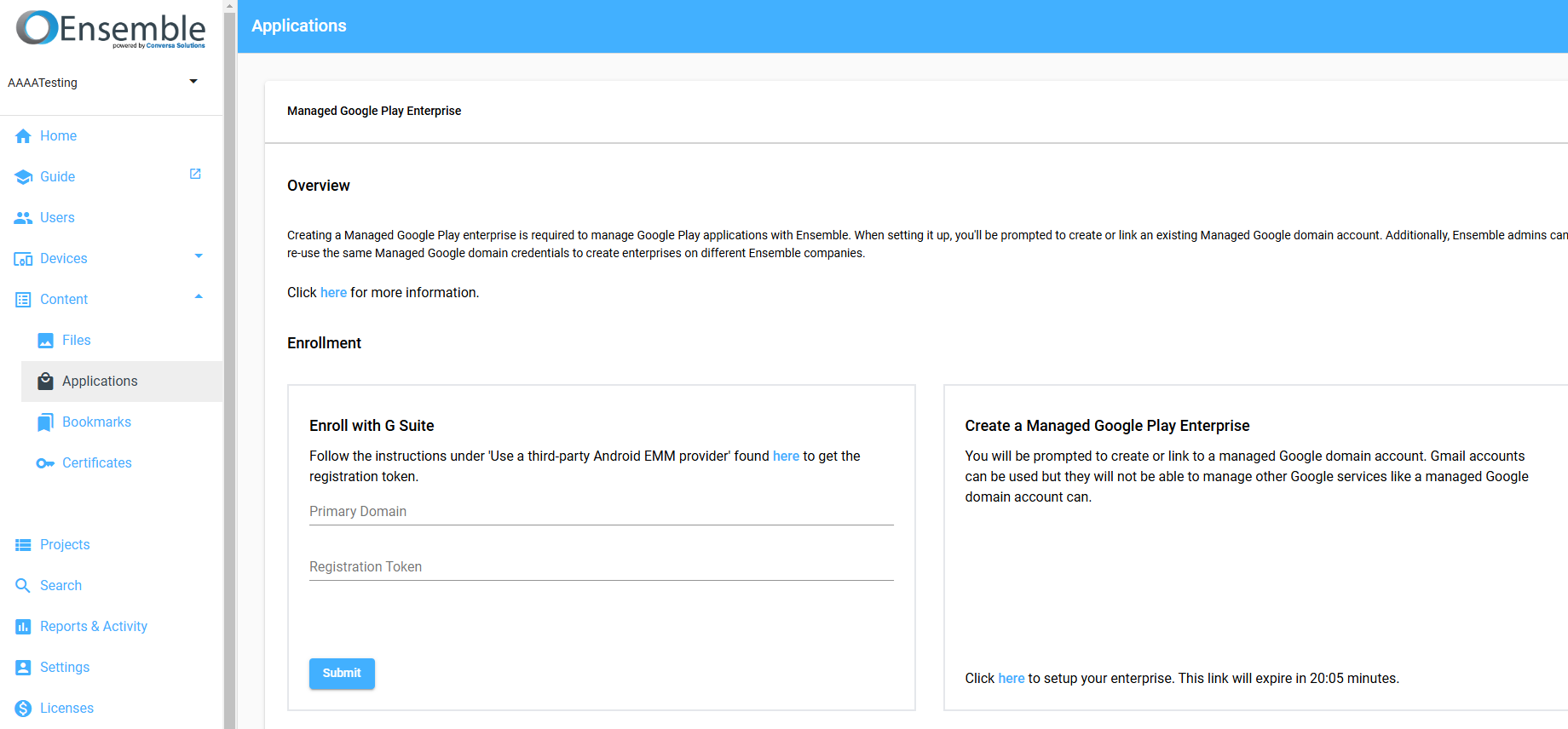
Create a Managed Google Play Enterprise
Creating a Managed Google Play enterprise is required to manage Google Play applications with Grizzly Tab's MDM. When setting it up, you'll be prompted to create or link an existing Managed Google domain account.
Enroll with a work email account
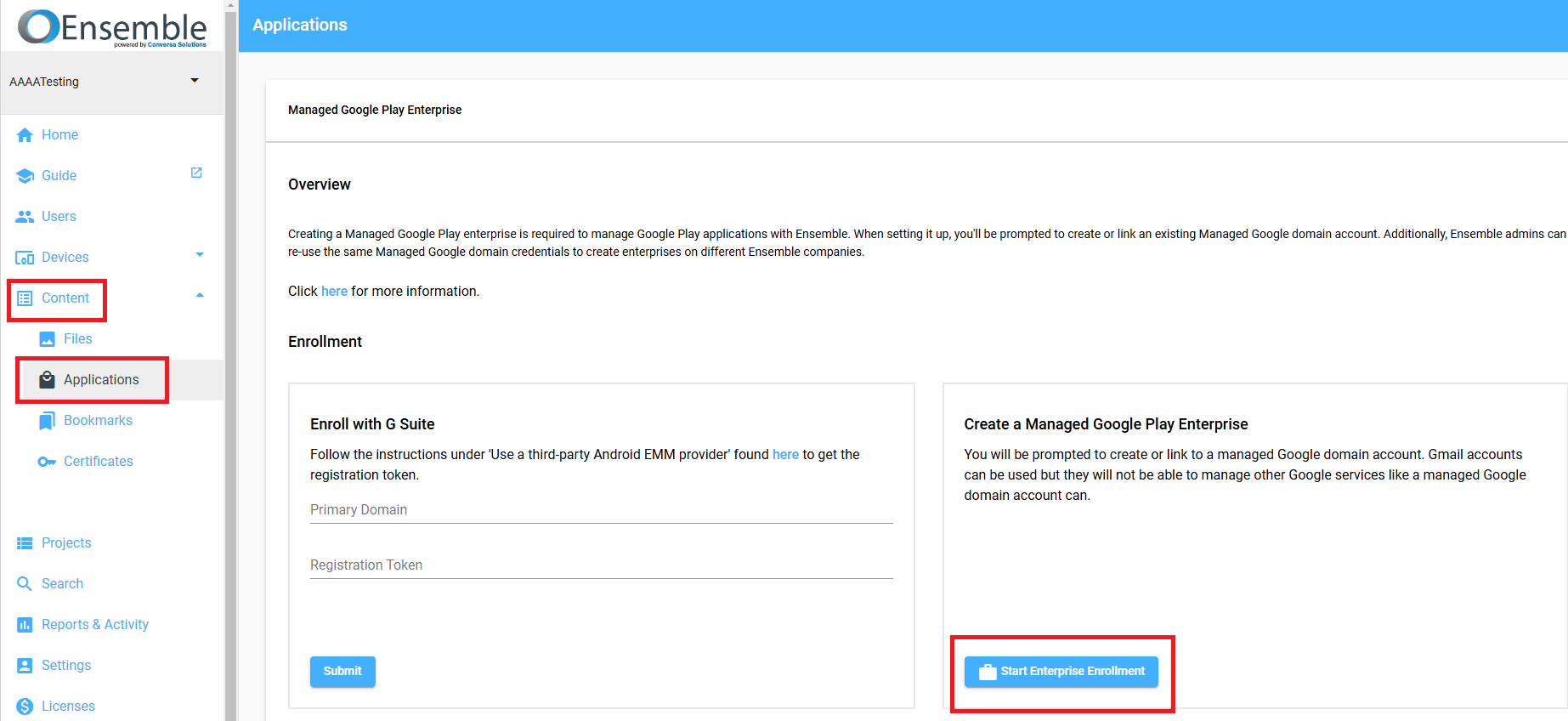
- Navigate to Content | Applications | Android Store in Grizzly Tab's MDM
- Generate a sign up URL inside the 'Create a Managed Google Play Enterprise' tile
- Click to URL to redirect to the Create a Managed Account setup flow
- Enter your work email address and click next
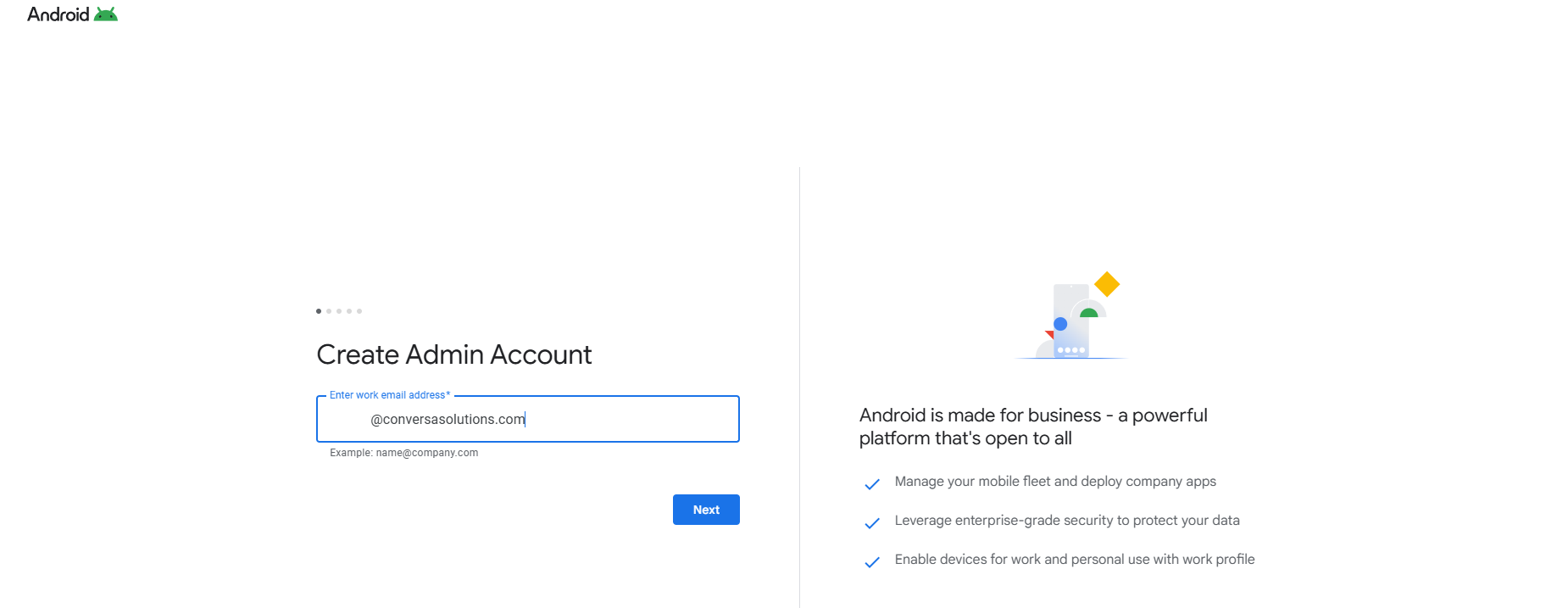
- A verification email from Google will be sent to that email address and you will see the following screen:
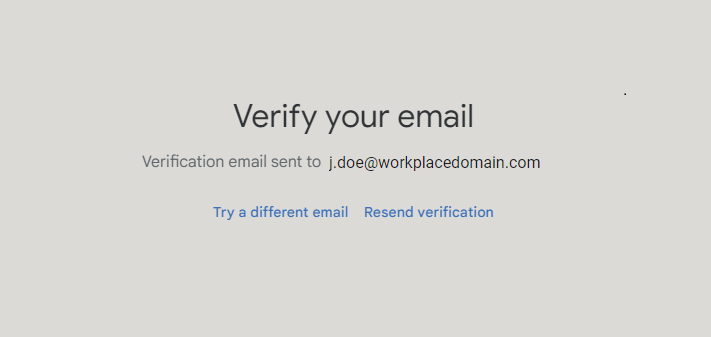
- After clicking the link and re-logging into the account to verify identity, the following screen will be shown:
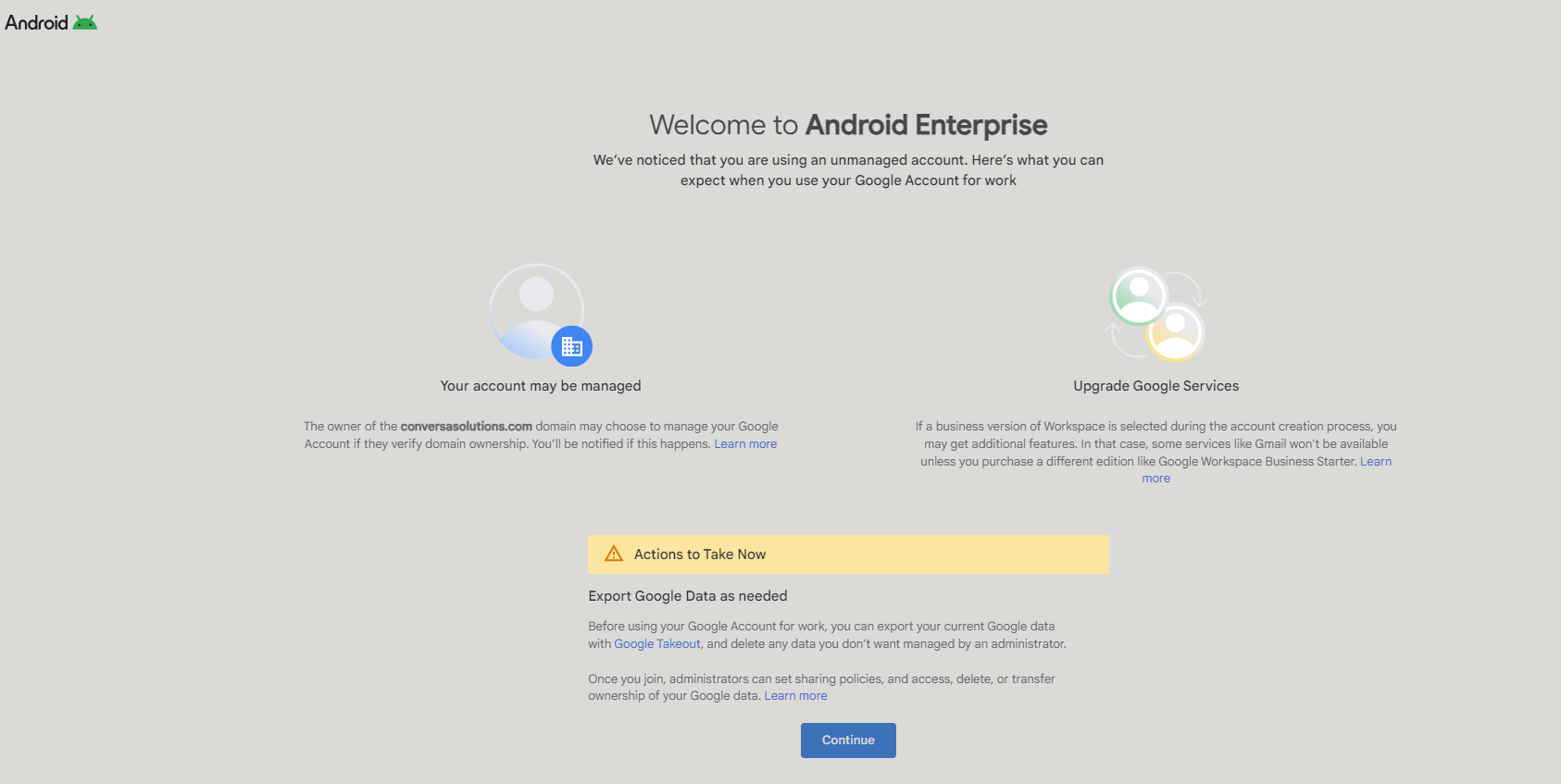 Here, Google presents you with a warning that the account may be managed by the domain owners, and if there are any new updates to Google services, access may be lost without purchasing additional editions of Google Workplace.
This page also allows the user to export any Google data as needed, using Google Takeout.
- Once you are satisfied you have your data and understand the Google warnings, click Continue to see this screen:
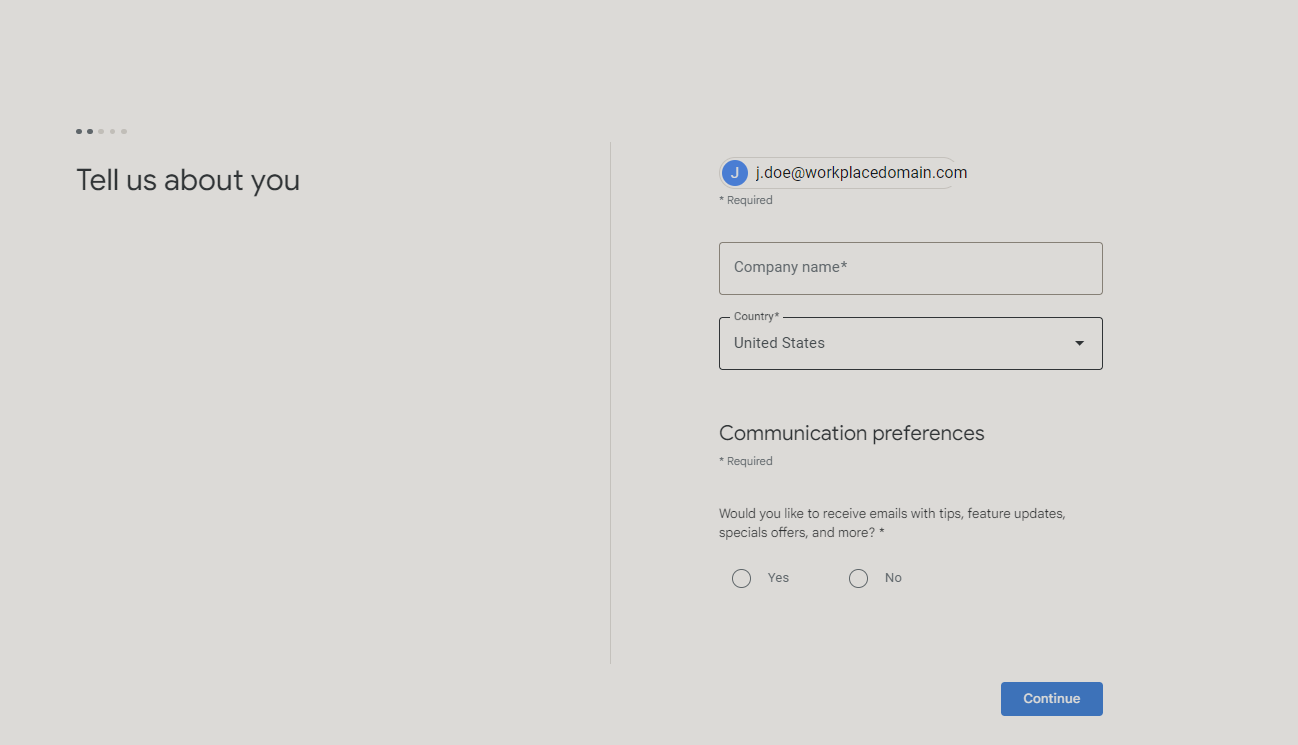
- Enter your Company name, ensure the country is selected correctly, and choose if you'd like to receive emails from Google. After selecting Yes or No, press Continue.
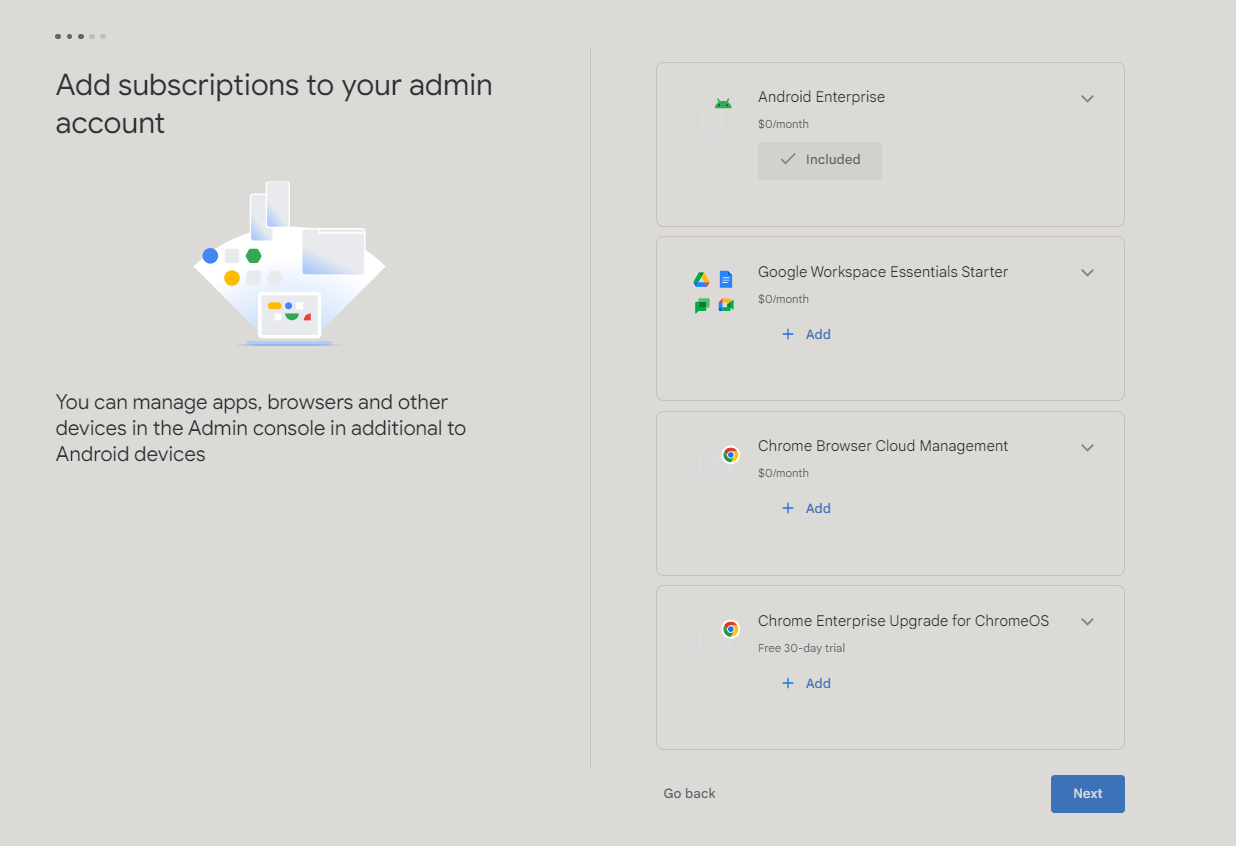
- (Optional) choose to add subscriptions to the admin account. Click on the downward arrow in any of the tabs to see more detailed information about each subscription option.
- Click Next in the bottom right to move onto the next screen.
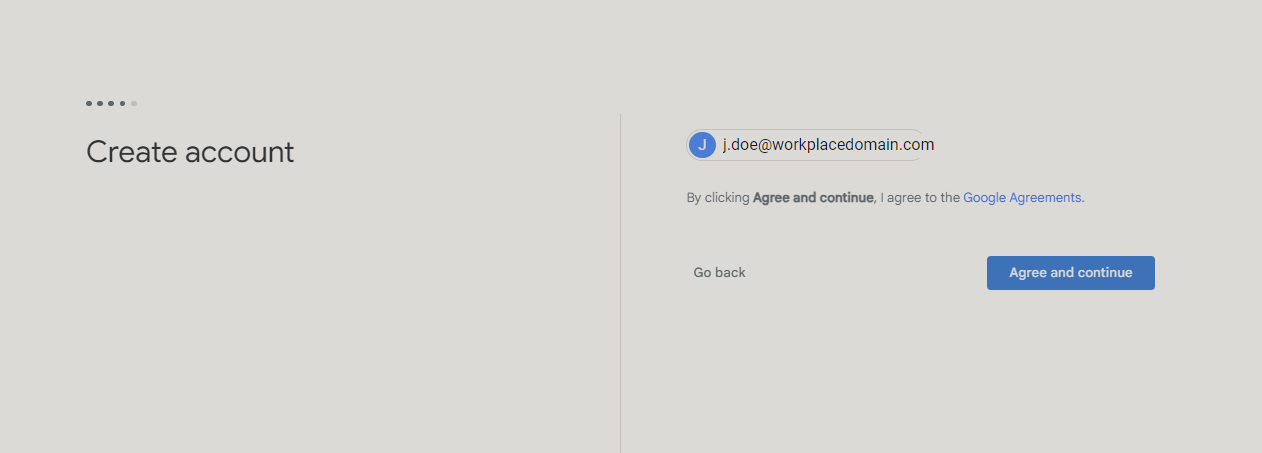
- Verify that the email you entered is the email showing on this screen, and click Agree and Continue to move to the last step.
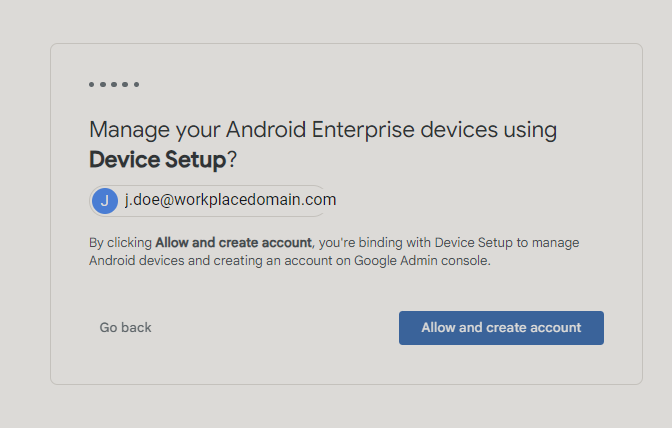
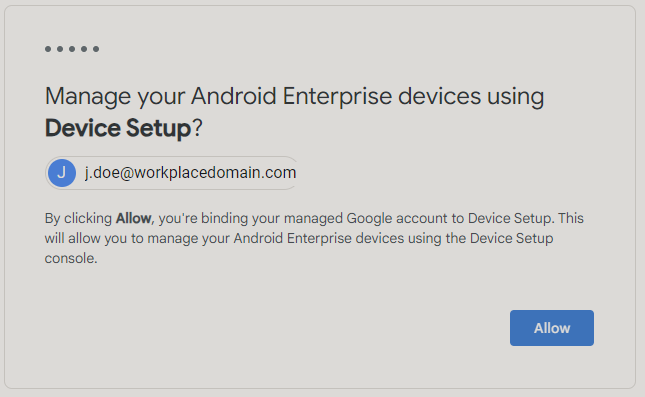
- Clicking Allow and Create Account on this page will confirm the account creation. After this, the email that was entered as the admin email will receive a confirmation email from Google, and will be fully set up.
- If you have already registered an account, the page will look the same, however instead of "Allow and create account", the button will say "Allow". You will also not have to go through as many steps; you will just need to log into the account, and then click "Allow", rather than creating the account, adding subscriptions, etc.
Enroll with a Gmail Account
A Google Enterprise Account is associated with your organization and allows you to select, purchase, and manage enterprise apps for your organization through the Google Play Store. Please see the gif image below for a visual walkthrough of these steps using a personal email address (non work domain).
- Navigate to Content tab, then choose Applications.
- Under "Create a Managed Google Play Enterprise", click "Enroll Enterprise"
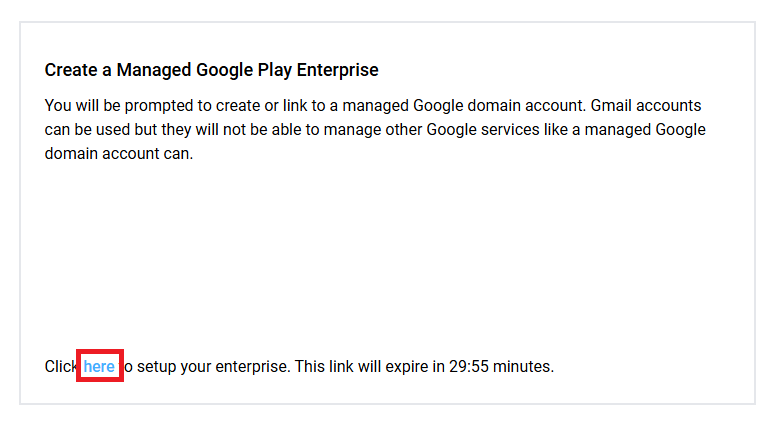
- Clicking that link will enter the flow to create your managed enterprise.
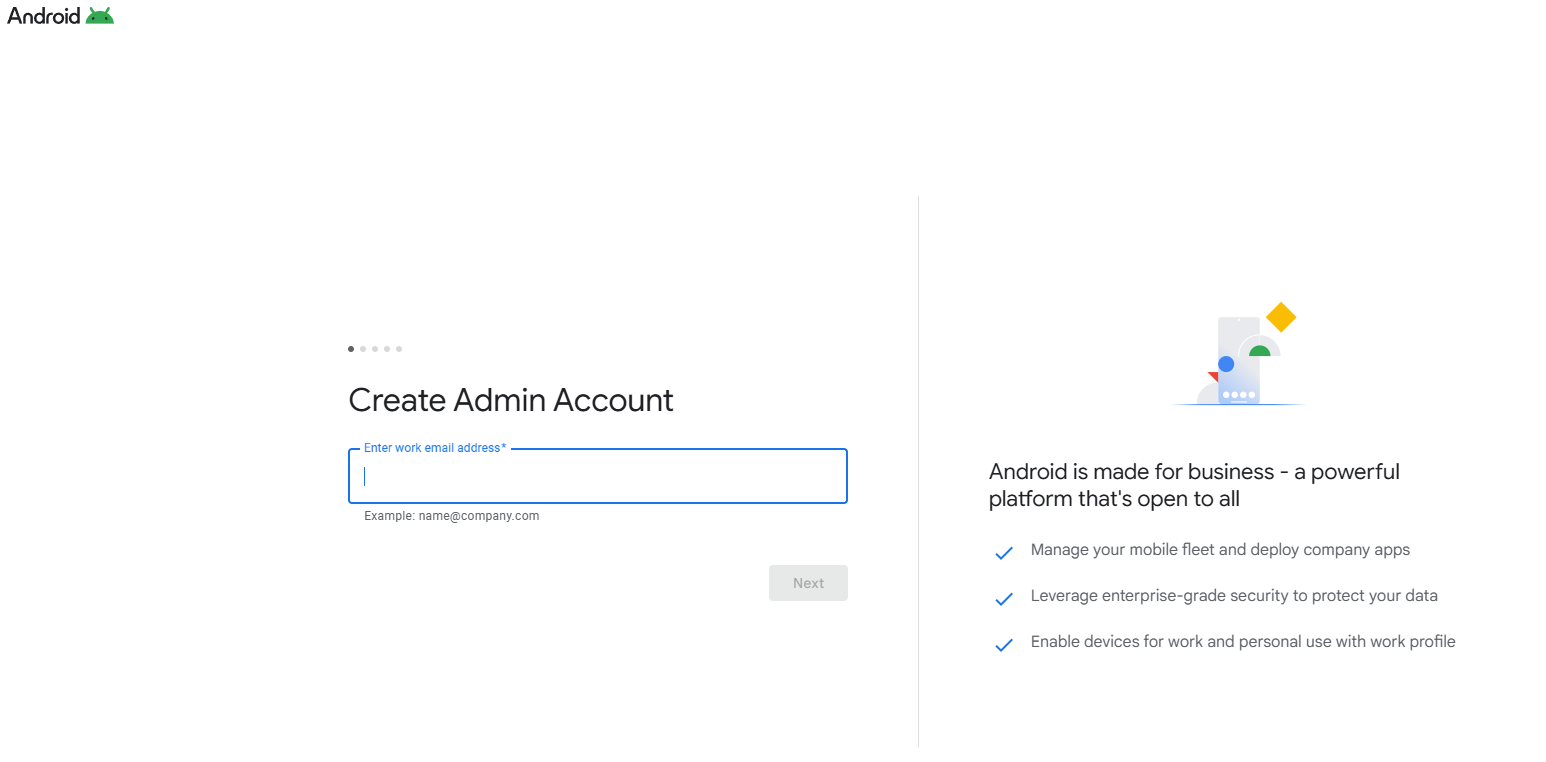
- If you use a Gmail account and not a work-related domain, you will only be able to manage Android devices, as shown in the below screen:
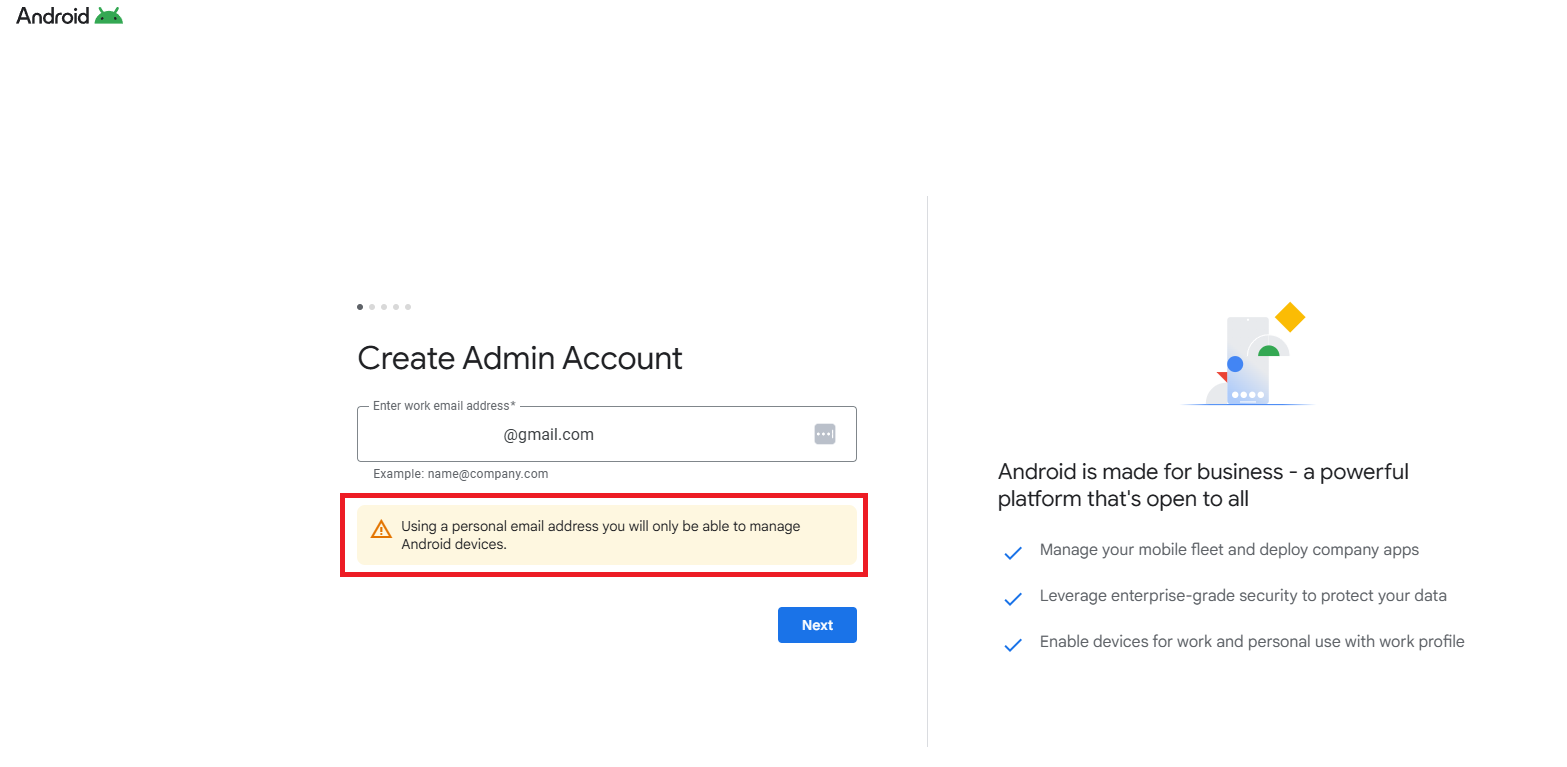
- Choose "Sign Up" under "Sign up for Android Only" to create the enterprise using a non-work domain email
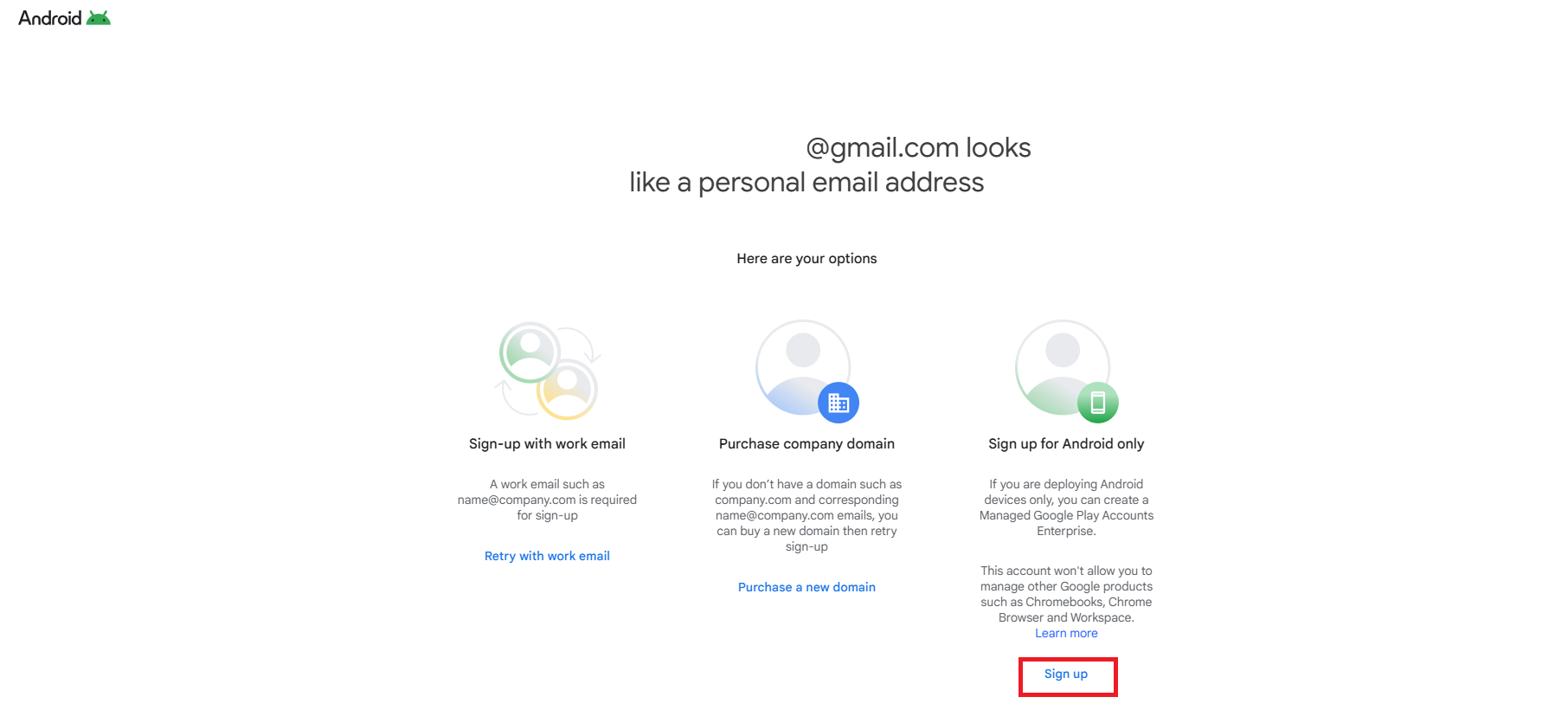
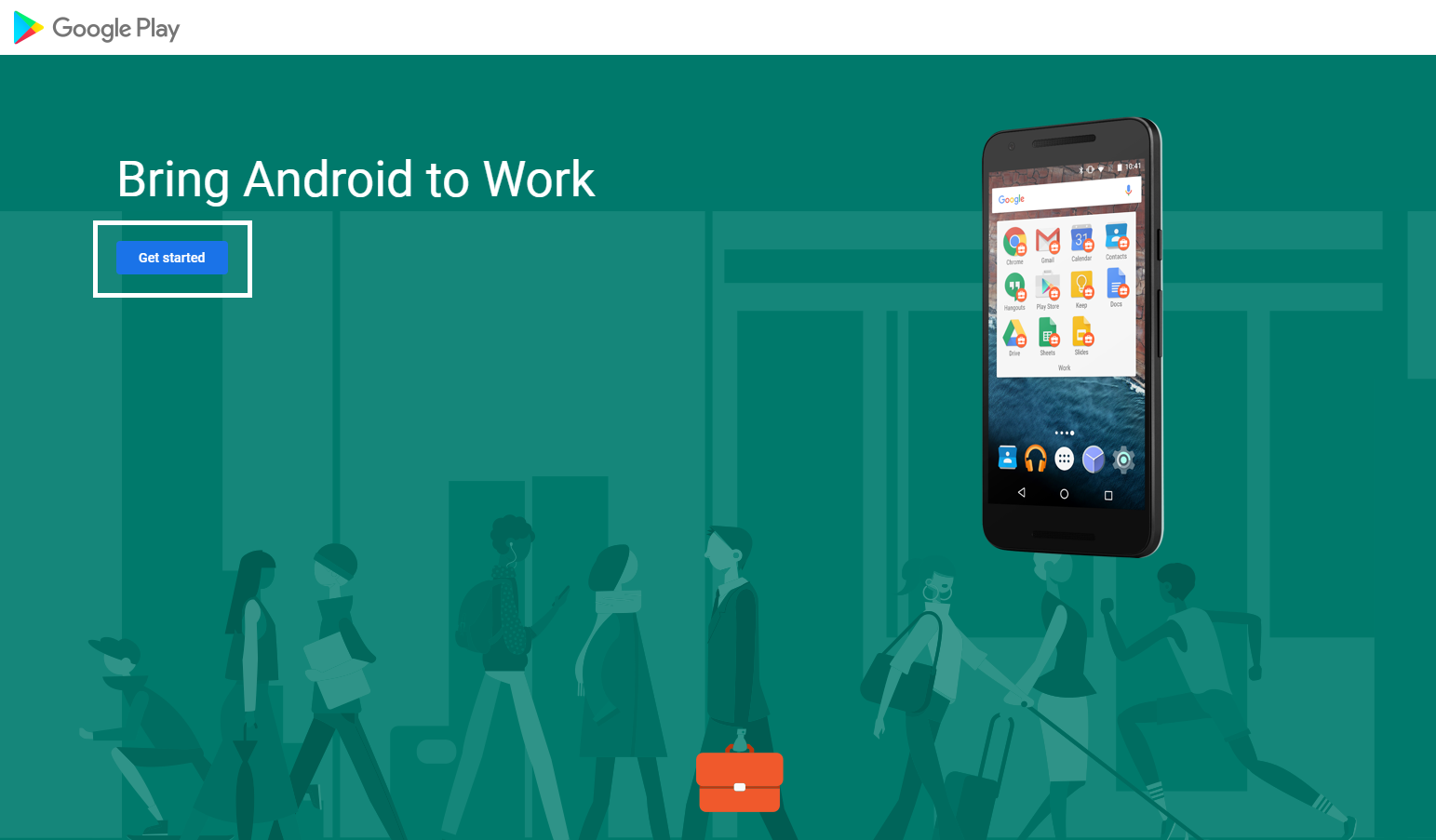
- This is what you will see after clicking Sign up. Click "Get Started" to continue:
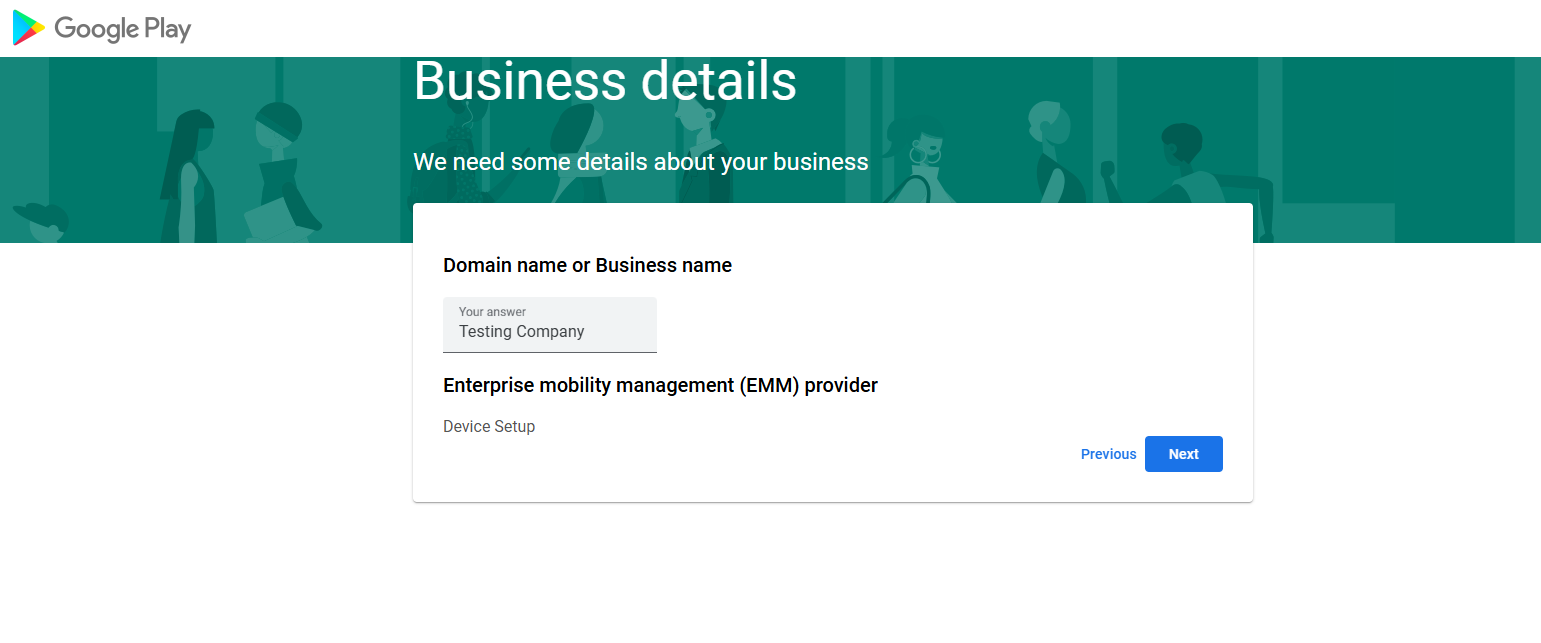
- Company Name: enter the name you'd like to give the enterprise, and click Next.
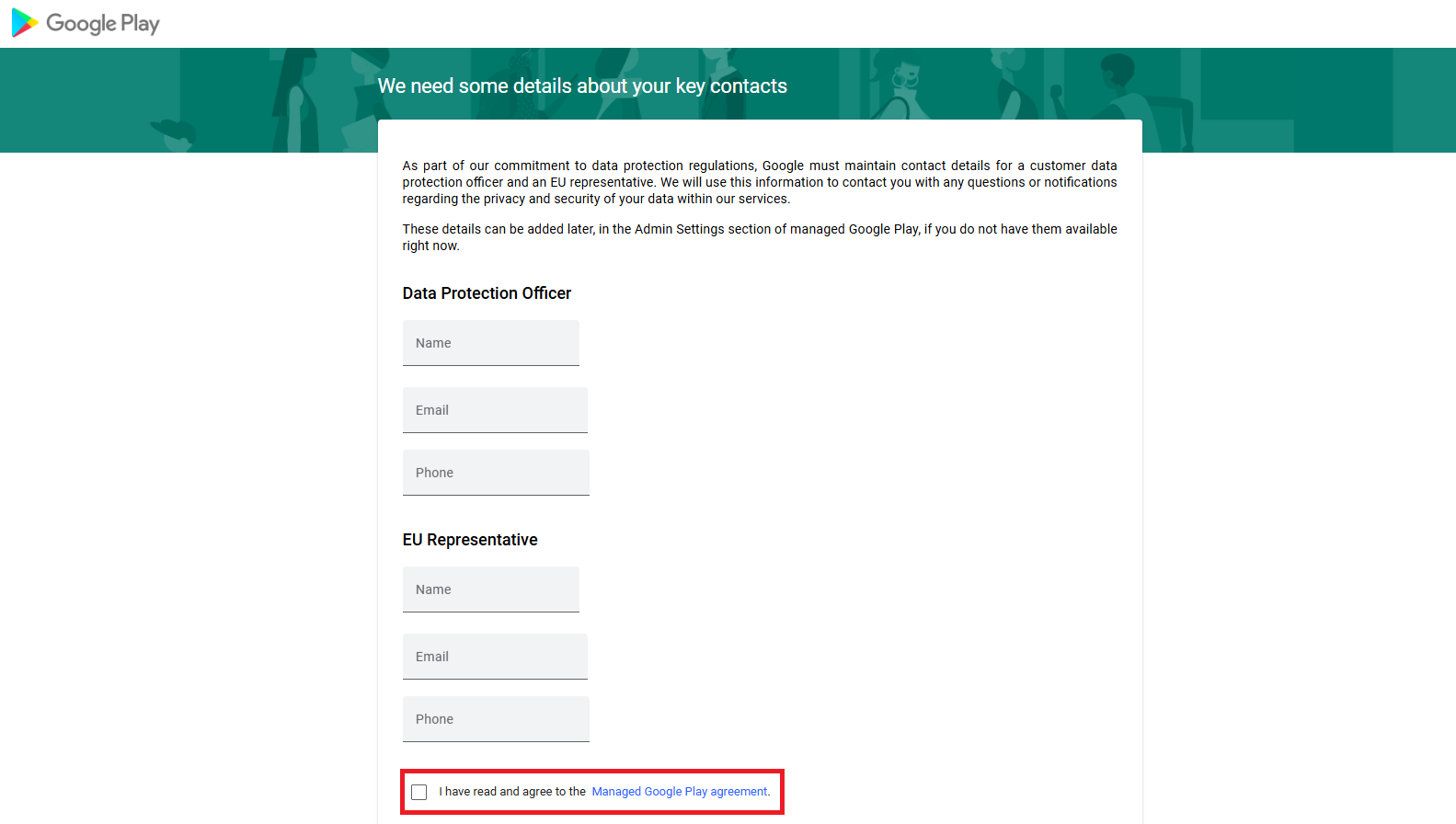
- (Optional) Data protection officer and EU representative: fill these out if applicable.
- Check the box stating that you agree with the terms and conditions, and click Confirm.
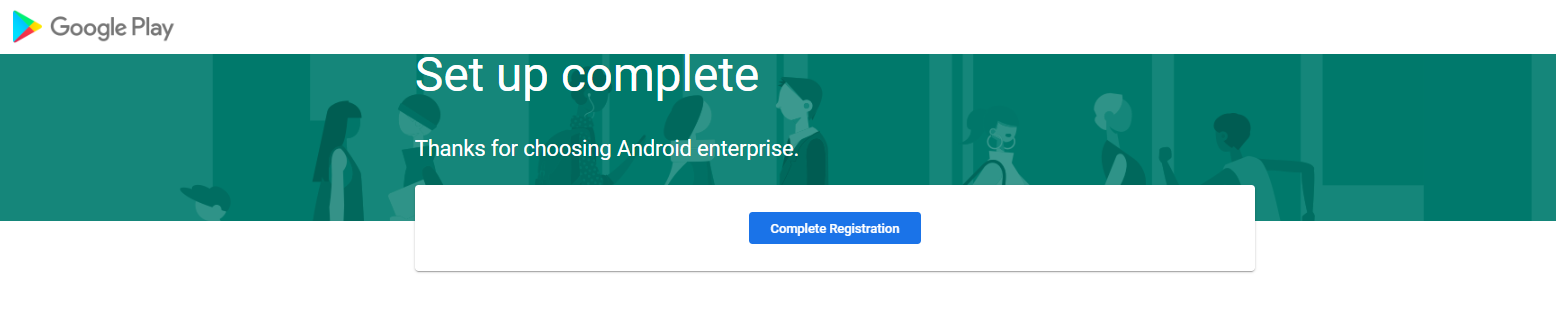
- Click "Complete Registration" to finish setting up your Enterprise Account.
- You will be redirected back to the management portal.
- After a moment, the page will refresh and your Enterprise will be enrolled.
Enroll with a G Suite Account
What is G-Suite?
G Suite allows employees to have Gmail accounts that use a business domain.
What is the Primary Domain?
The business domain of the G Suite account.
Create an Organizational Unit (If one does not already exist):
- Go to the Manage Organizational Units page of the Google Admin console.
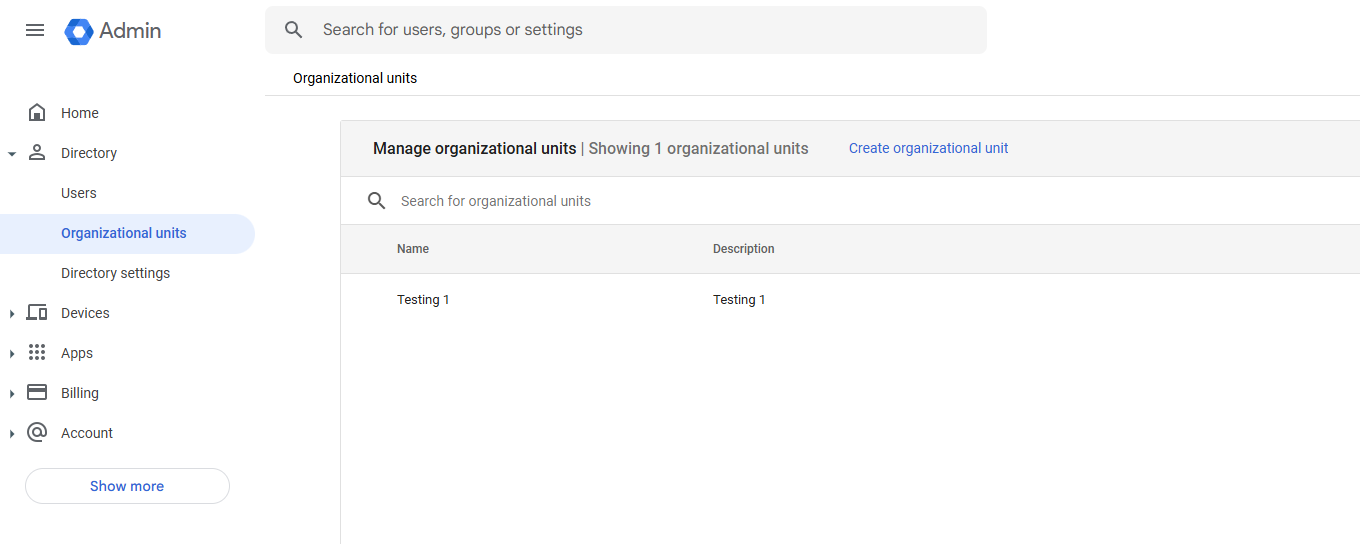
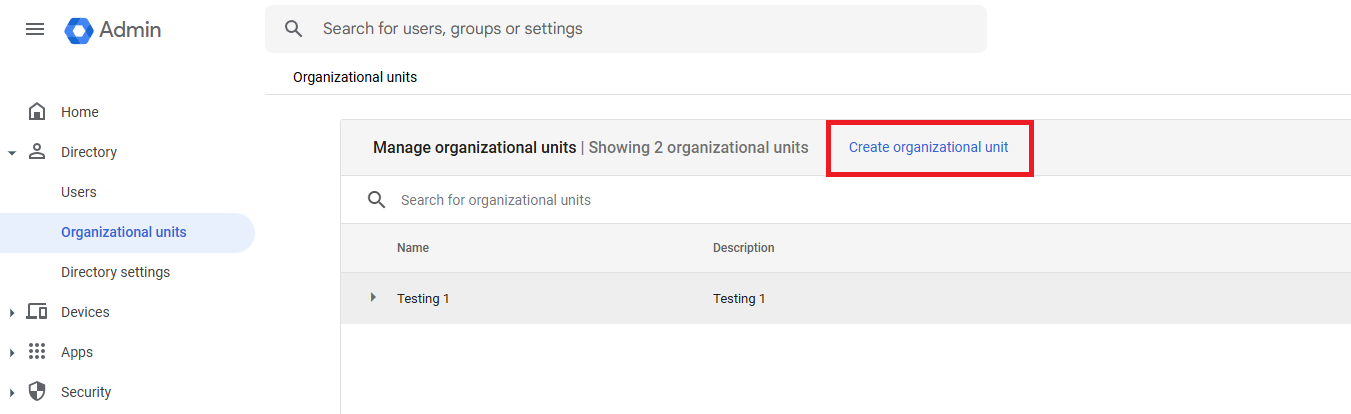
- Create a new Organizational unit. The name here will be the name of the Google enterprise created for Grizzly Tab's MDM.
Where to get a registration token:
- Sign in to your Google Admin console
- Sign in using an account with super administrator privileges.
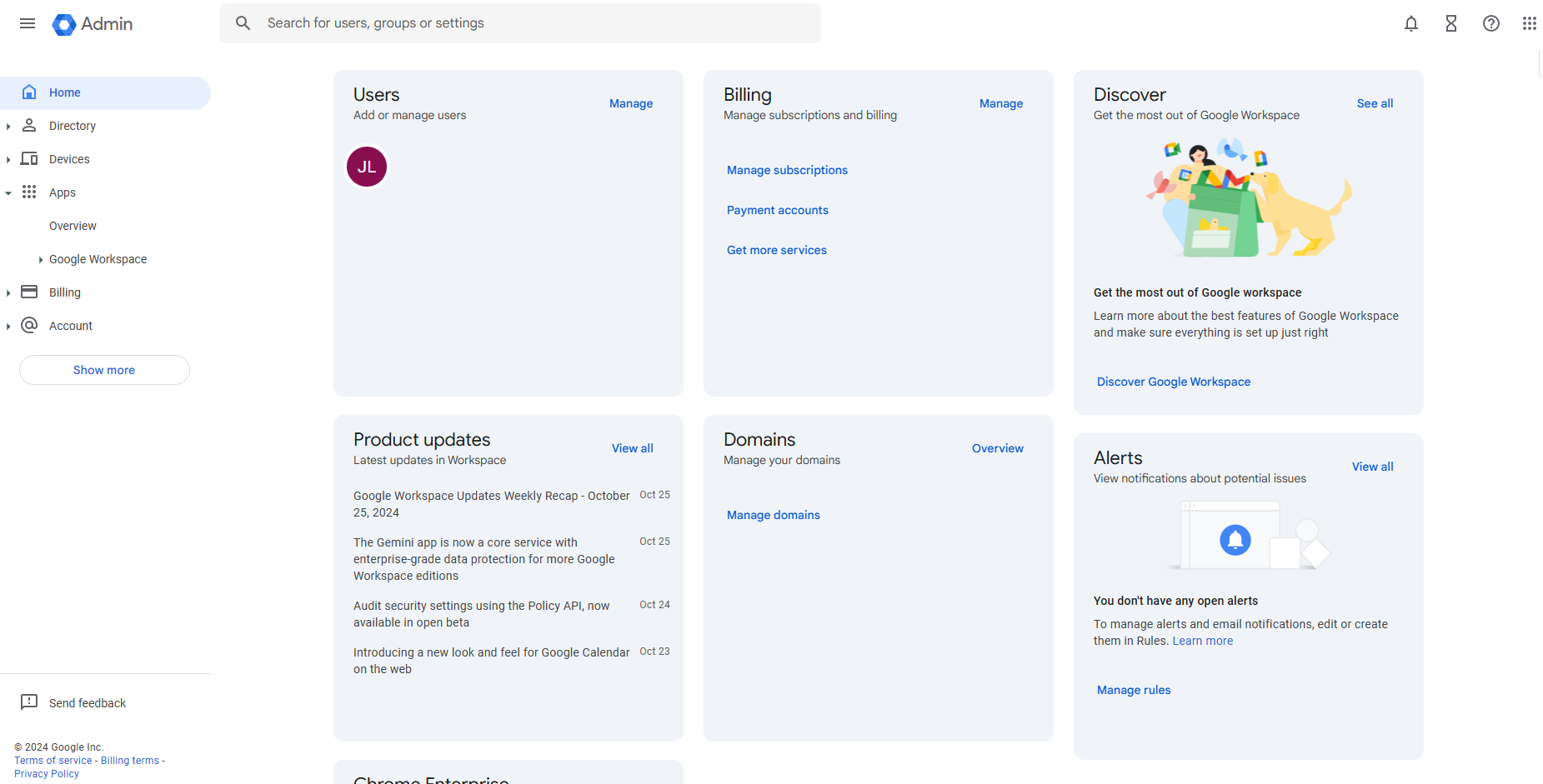
- From the Admin console Home page, go to Devices.
- From the side navigation, expand the Mobile & Endpoints option, then expand the Settings option, click Third-party integrations.
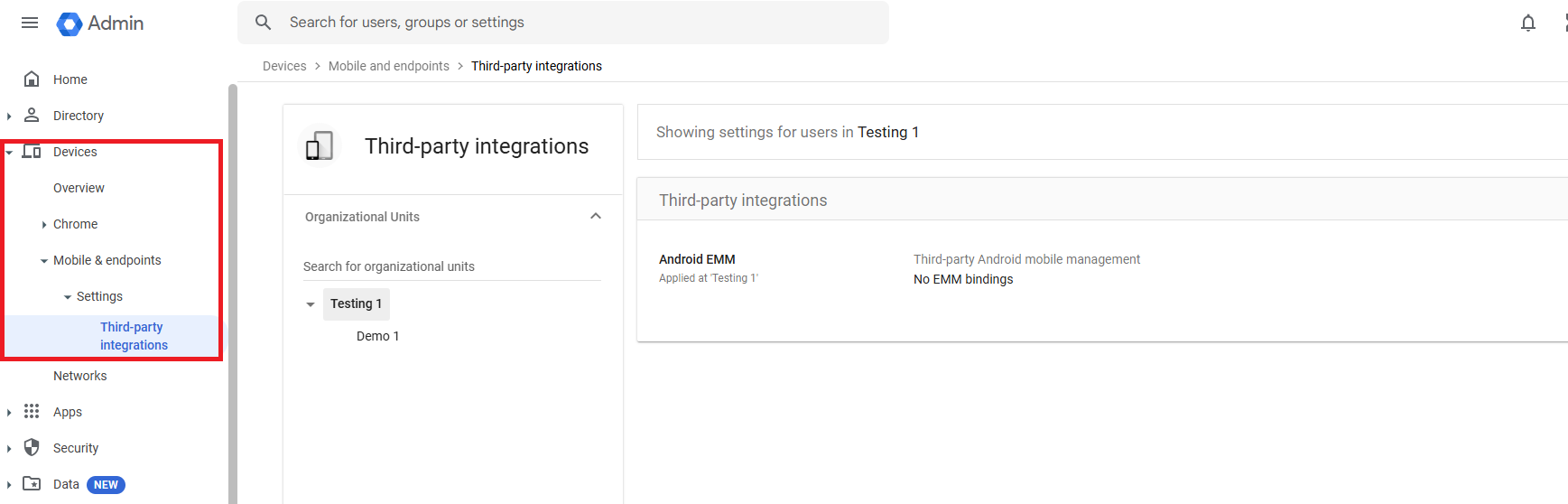
- Choose which organizational unit to associate the Android EMM.
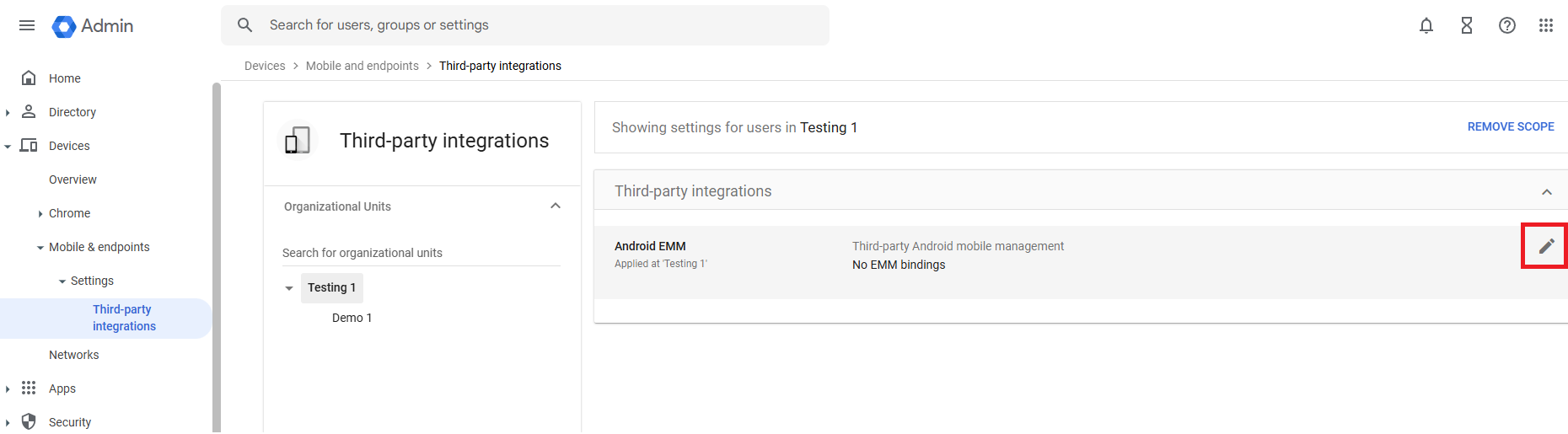
- Click the edit icon to open the Android EMM settings.
- Click Add EMM provider.
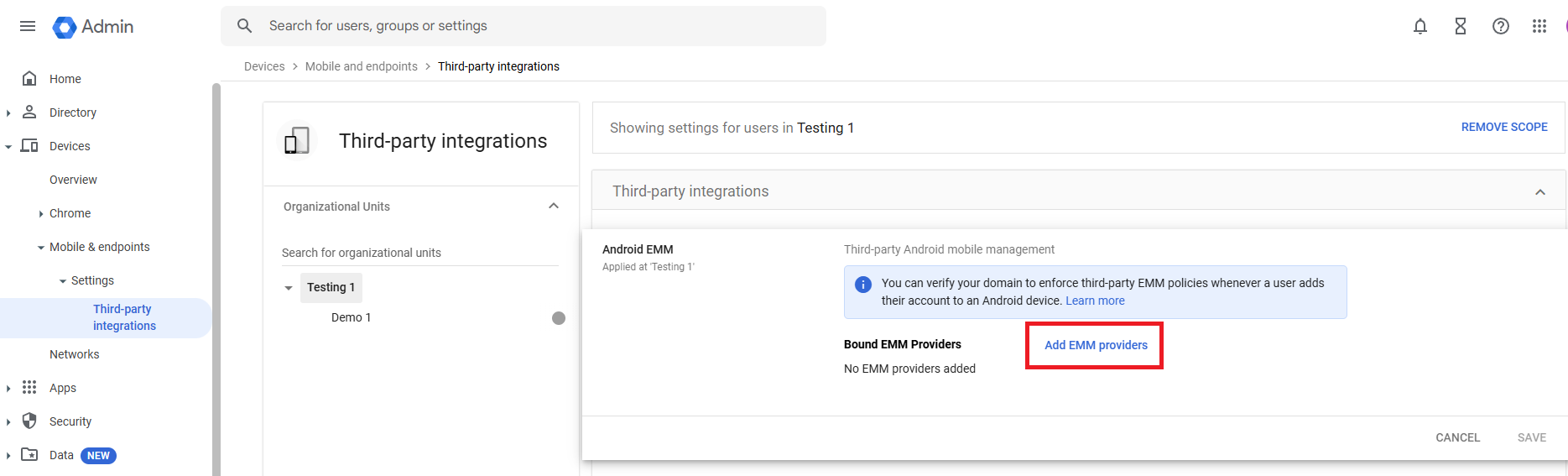
- If a token is present in the token generator, copy the token. Otherwise, click Generate Token to create a new token and copy it.
- Go to the Google Play Content page and enter the primary domain and registration token.
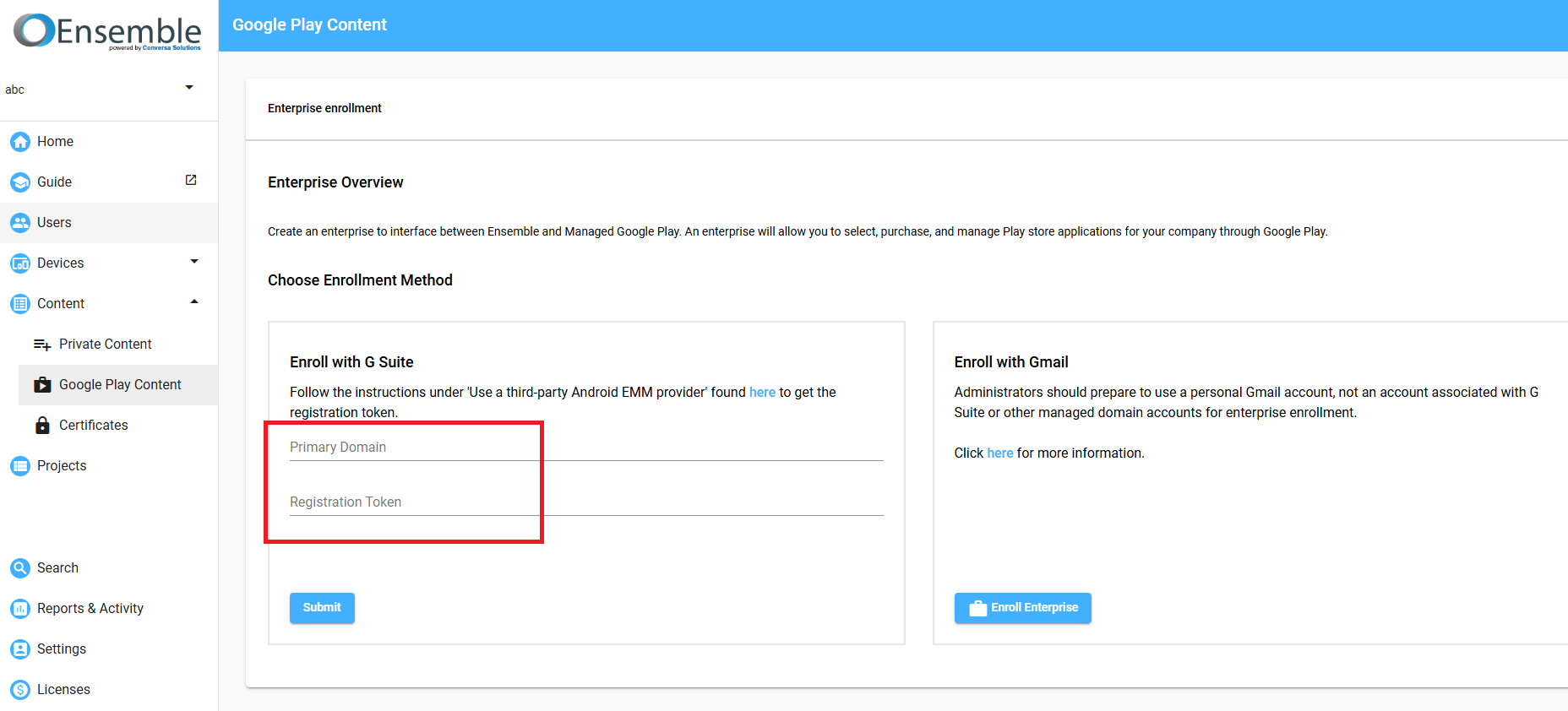
Un-Enrolling An Enterprise Account
Un-enrolling a Google Enterprise account will remove the ability for you to use Google Play with your Management account. Continue on with the following steps to un-enroll your enterprise account:
- Expand the 'Enterprise enrolled!' drop-down.
- Select 'Un-enroll Enterprise' under the Action(s) heading.
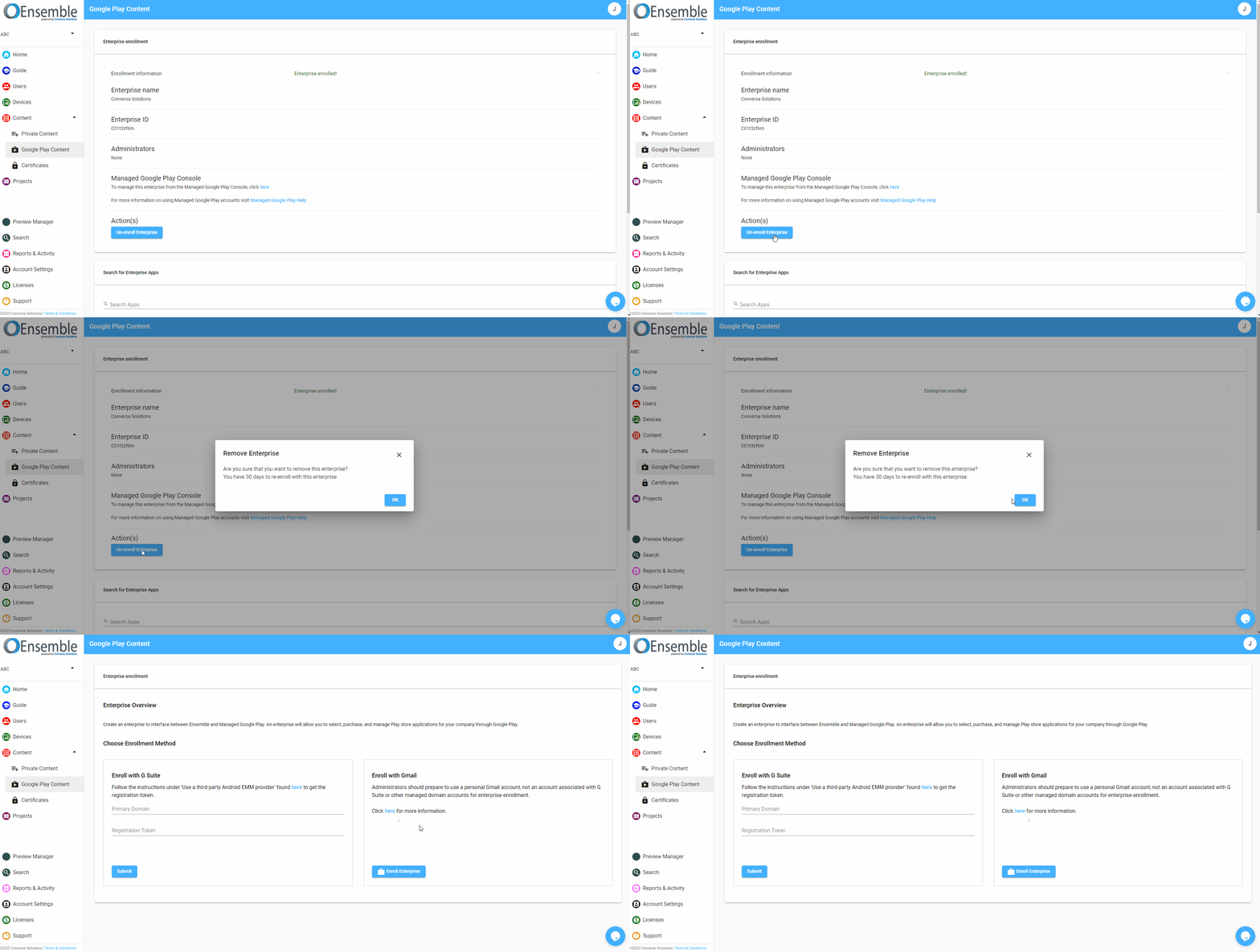
You can now re-enroll or sign-in to a different Google account to enroll a new enterprise.
Re-enrolling into an Enterprise
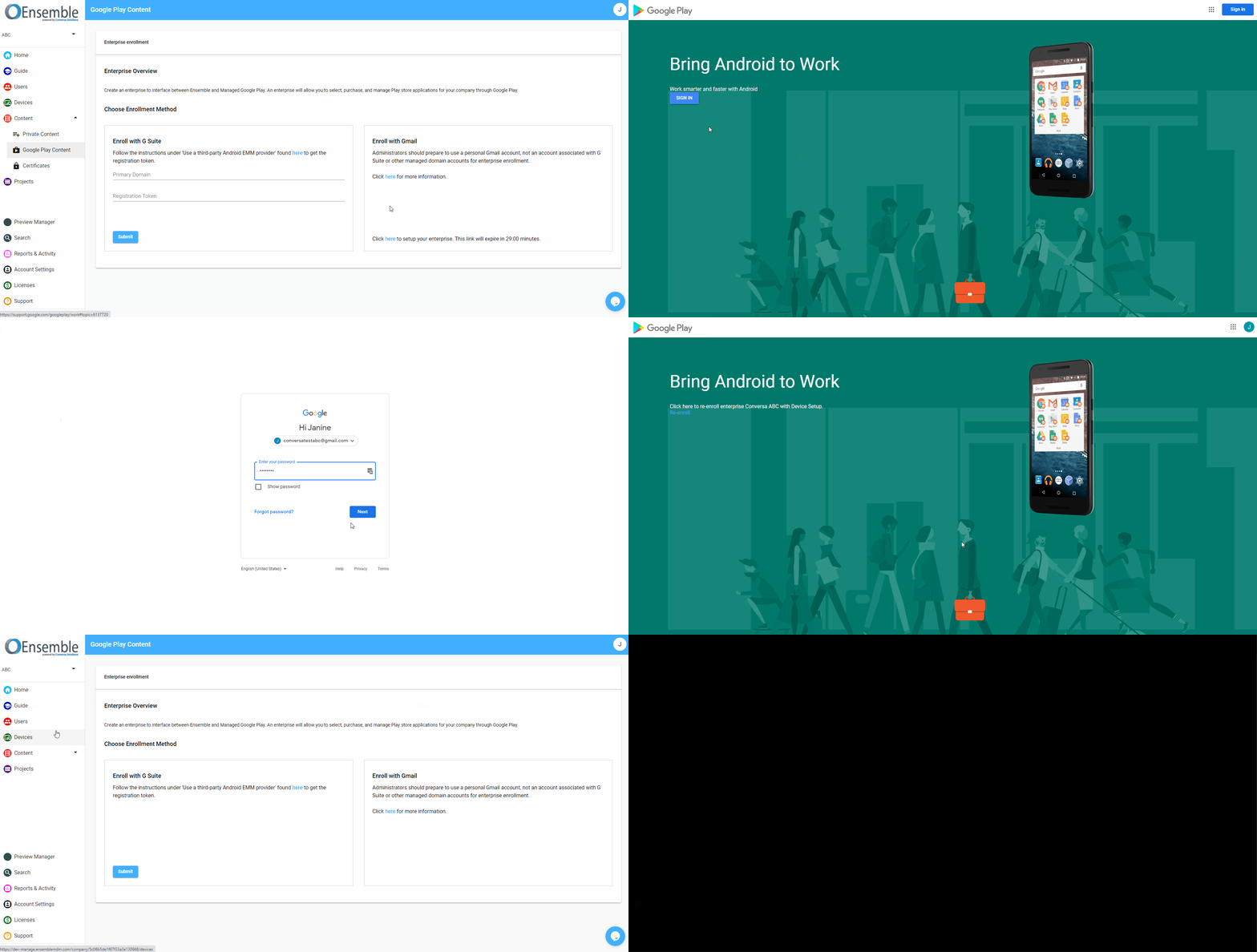
Within 30 days of un-enrolling from an Enterprise. The enterprise can be re-enrolled with Grizzly Tab's MDM.
Still stuck?
Ask our assistant, or we'll walk you through it.